Campaign Setup
Configuring your campaign rules and options for MekHQ
Starting a New Campaign
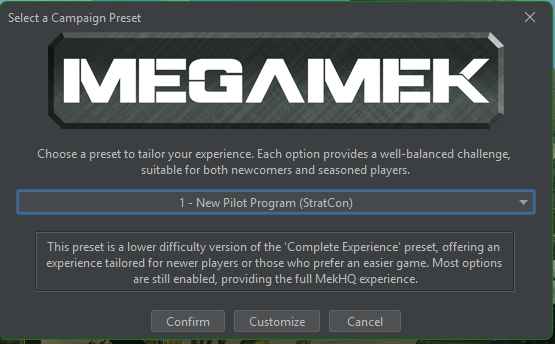
When you first start MekHQ, click New Campaign. After a brief loading screen, you'll see the Campaign Preset selection.
Preset Options
For single-player campaigns against the computer, select either:
Easier experience, fewer complex mechanics.
Recommended for: First-time players
Full Campaign Operations rules with StratCon.
This guide uses: Veteran Player Preset
Both include StratCon Digital GM: StratConThe premier Digital GM system for single-player campaigns, featuring strategic objectives and area control.Click for full definition , an automated campaign system that acts as your digital GM for single-player gameplay.
If you select New Player Preset and click "Confirm," you can skip to Starting Your First Company.
Click Customize to fine-tune the campaign options, which we'll cover below.
General Settings
Start Date
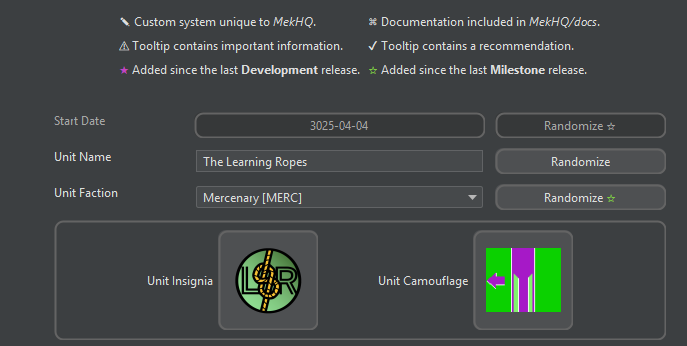
Choose when your campaign begins. The era affects available technology and the political landscape.
Late Succession Wars (around 3025). No advanced technology to worry about, but plenty of interesting political events in the following decades.
Unit Configuration
| Setting | Description |
|---|---|
| Unit Name | Your company's name (can be randomized) |
| Unit Faction | Who you represent (Mercenary recommended) |
| Reputation Force ReputationHow well-known your unit is and whether others trust your ability to complete missions.Click for full definition | How reputation is calculated (keep CamOps default) |
| Insignia | Your unit's icon |
| Camo | Your unit's color scheme |
Human Resources
These settings control personnel management.
Personnel - General
| Option | Recommendation |
|---|---|
| Edge EdgeA resource that can be spent to reroll negative events like failed skill checks or head hits.Click for full definition | Optional "luck" points from A Time of War. Disable for grittier gameplay. |
| SPAs | Special Pilot Abilities add variety. Enable with a limit (2-3 per character). |
Personnel - Awards
Keep defaults. If you disable Edge, set award bonuses to XP only.
Personnel - Medical
Fine-tune if doctors over/underperform. Advanced Medical includes traumas, illnesses, and amputations.
Personnel - Personnel Information
Enable all tracking/logging options. Slows down large units (200+ personnel) but provides useful statistics for smaller companies.
Personnel - Prisoners & Civilians
- Capture Style "MekHQ" adds roleplay events even if you don't take prisoners
- Uncheck "Random addition" for civilians unless you want surprise arrivals
Personnel - Biography
Notable settings:
- Backgrounds tab: Enable clan origins if desired
- Education module: Recommended for roleplay value—send personnel to academies and bootcamps instead of just spending XP
Rank Systems
Choose a rank structure matching your unit's origin. Custom ranks can also be created.
Relationships
Enable for marriages, divorces, and procreation. Check "Determine Father at Birth" and "Log Name Changes" for proper records.
Turnover and Retention
| Option | Description |
|---|---|
| Fatigue FatigueA measure of how exhausted a character is, affecting performance and retention.Click for full definition | Models exhaustion from deployment. Adds depth but can be disabled. |
| Turnover TurnoverThe rate at which personnel leave your unit due to various factors.Click for full definition | Controls when personnel quit. Quarterly checks are manageable; annually is easier. |
| Hide Loyalty | Adds intrigue—you won't know who plans to leave. |
Advancement
Awards and Randomization
Keep defaults initially. The Advancement Multiplier (default 1.0) affects XP costs—set to 0.5 for faster progression.
Skills
Keep defaults for your first campaigns.
Abilities
All SPAs should be checked. Uncheck "unofficial" abilities if you prefer pure rulebook options.
Logistics
Supplies and Acquisition

| Setting | Recommendation |
|---|---|
| Delivery Time Delivery TimesHow long it takes for ordered parts and units to arrive (usually months, not days).Click for full definition | Change from Months to Weeks for faster resupply |
| Autologistics | Set parts to 25-50%, armor/ammo to 100%+ |
| Planetary Acquisitions Parts AvailabilityModifier to procurement based on contract type, representing resource difficulty.Click for full definition | Enable for realism (harder to find tech in the Periphery) |
| Clan Parts | Disable if not playing as Clans |
Maintenance MaintenanceRegular upkeep required to keep units operational, performed by assigned technicians.Click for full definition and Repairs
If maintenance MaintenanceRegular upkeep required to keep units operational, performed by assigned technicians.Click for full definition feels too punishing:
- Set Maintenance Modifier to -2 (easier rolls)
- Increase maintenance cycle beyond 7 days
- Untick "Use Era Modifiers" for repairs
Making everything too easy removes challenge. Try defaults first.
Operations
Finances
For hardcore accounting, enable:
- Pay for Overhead
- Pay for Maintenance
- Recruitment costs
- Taxes
Disable these if money is too tight.
Markets
| Market | Recommendation |
|---|---|
| Contract Market | Lower max salvage to 50% for realism |
| Personnel Market | Enable "Hiring Halls only" for realism |
| Unit Market | Disable if you prefer pure acquisition rolls |
Digital GMs (StratCon)

Enable StratCon for single-player campaigns against the computer.
| Setting | Description |
|---|---|
| Difficulty | Start with Ultra-Green for first playthrough |
| Unit Ratios | 1:1:1 generates meks, vehicles, and mixed forces equally |
| Weather/Planetary Conditions | Disable for simpler battles; enable for variety |
Final Touches
Save Your Preset
Go to File > Save Preset for future campaigns
Apply Settings
Click Apply Settings to finalize
MekHQ Options
Go to File > MekHQ Options and configure:
Untick all (show all reminder dialogs while learning)
Enable all automation features
- Increase autosaves to 10
- Enable save before scenario start
- Enable save before mission conclusion
Configuring Battle Rules (Optional)
Access via File > MegaMek Options to configure tactical combat rules.
Double Blind (More Realistic Vision)
| Option | Recommendation |
|---|---|
| TacOps Double Blind | Enable |
| TacOps Sensor Rules | Enable |
| Blind Drop | Enable |
| No Double Blind Messages | Enable |
| Exclusive double blind deployment zones | Disable (doesn't work well with StratCon) |
Allowed Units
- Check "Variable tech level"
- Check "Allow invalid unit designs"
Combat Rules
Search "TacOps" in the options for the full list. Notable options:
| Option | Description |
|---|---|
| Careful Stand | Slower but more reliable standing |
| Starting Fires | Lasers can ignite forests |
| Backward Movement | Move backwards on slopes |
| Minefields | Enable minefield use |
Miscellaneous
- "Flamers per BattleMech Manual" - More viable flamers
- "Infantry don't count for movement initiative"
- "Through-armor criticals will float"
All options can be changed at any time during the campaign.