Your First Contract
Taking on your first contract in MekHQ
Finding Contracts
Contracts appear in Marketplace > Contract Market. The number of available contracts depends on:
- Your unit's reputation
- Your current location
- The date (new contracts appear on the 1st of each month)
If no contracts are available, wait until next month or use Generate (GM) with GM Mode active.
Contract Market Overview
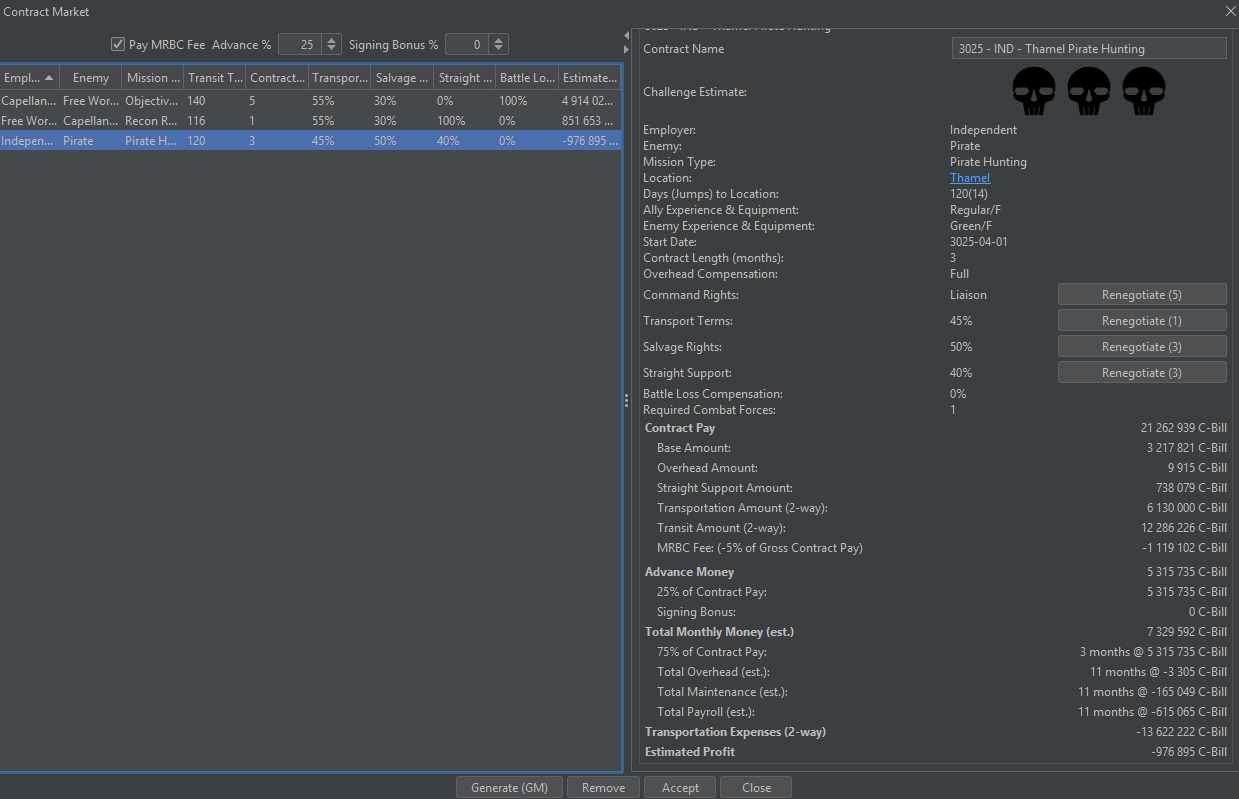
Contract Information
| Column | Description |
|---|---|
| Employer | Your future boss |
| Enemy | The OpFor you'll be fighting |
| Mission Type | Overall goal (raid, garrison, pirate hunting, etc.) |
| Transit Time | Days to reach the contract location |
| Contract Length | Duration in months (may change during contract) |
| Transport Terms | Percentage of transport costs covered |
| Salvage Rights | Percentage of salvage you keep |
| Straight Support | Running cost coverage |
| Battle Loss Compensation | Casualty/loss coverage (mutually exclusive with straight support) |
| Estimated Profit | Projected profit (doesn't include salvage value) |
| Skulls Challenge SkullsA 1-5 skull rating estimating contract difficulty by comparing your forces to the OpFor.Click for full definition | Difficulty rating (1-5 skulls) |
Fees and Bonuses
Usually 25% paid in advance to the Mercenary Review and Bonding Commission
Rare upfront payment for taking the contract
Video Tutorial: Contract Market
Contract Details
Click a contract to see detailed information in the right panel.
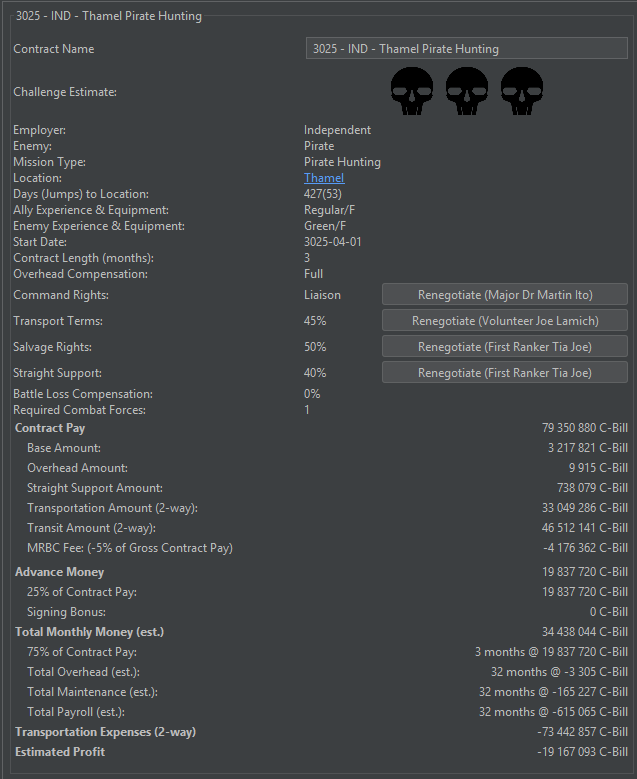
Challenge Estimate Challenge SkullsA 1-5 skull rating estimating contract difficulty by comparing your forces to the OpFor.Click for full definition
The skull rating Challenge SkullsA 1-5 skull rating estimating contract difficulty by comparing your forces to the OpFor.Click for full definition indicates difficulty:
| Rating | Meaning |
|---|---|
| 1 Skull | Below your level |
| 2.5 Skulls | On par with your forces |
| 5 Skulls | Significantly harder |
Force Quality
| Rating | Description |
|---|---|
| Experience Experience RatingA measure of your campaign's veterancy based on Campaign Operations rules.Click for full definition | Green to Elite (same as your roster) |
| Equipment | F (worst) to A (best) |
Command Rights
Determines your operational independence:
| Level | Description |
|---|---|
| Integrated Integrated Command RightsStandard for government forces with streamlined command and control. Allies join all scenarios.Click for full definition | Part of employer's force; allies join all scenarios |
| House House Command RightsAutonomy over allied forces while balancing loyalty to House interests. Allies join around a third of scenarios.Click for full definition | Limited independence; allies join ~1/3 of scenarios |
| Liaison Liaison Command RightsCoordinate cooperation between allied factions with moderate independence. Allies join around a third of scenarios.Click for full definition | Moderate independence; allies join ~1/3 of scenarios |
| Independent Independent Command RightsFull autonomy over your forces to achieve objectives efficiently. Allies rarely join scenarios.Click for full definition | Full freedom; allies rarely join scenarios |
Negotiation
Click Renegotiate next to any term to attempt a better deal. Success depends on your admin staff skills.
Accepting a Contract
Once you've chosen a contract:
Review Terms Carefully
Check all contract terms and requirements
Negotiate if Desired
Attempt to renegotiate unfavorable terms
Accept Contract
Click Accept Contract to finalize
The contract appears in your Briefing Room tab.
Travel
After accepting a contract, you'll need to travel to the deployment location.
Transit
Go to the Interstellar Map
Your destination is marked
Use Advance Day or Advance Multiple Days to travel
Travel time depends on:
- Distance in jump points
- Available JumpShip routes
- Your transport arrangements
Transport Costs
Transport costs are calculated based on:
- Unit weight requiring transport
- Distance traveled
- Transport terms in your contract
If you lack sufficient transport capacity, you'll need to hire DropShips and JumpShips.
Deployment
Briefing Room
The Briefing Room tab shows your active contracts and missions.
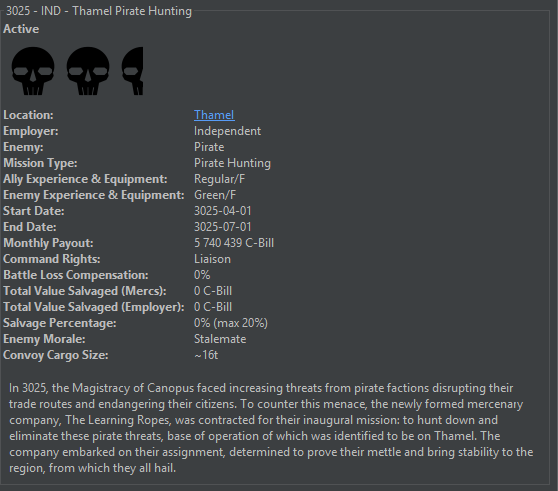
Contract Requirements
Your contract specifies:
- Mission objectives
- Required forces
- Time limits
- Support available
Force Deployment
When a scenario appears:
Go to the TO&E tab
Right-click on forces you want to deploy
Select Deploy Force to the scenario
The scenario appears in the Briefing Room with assigned forces listed.
Video Tutorial: Starting a New Contract
Starting Battle
Opens MegaMek with your deployed forces. Assign OpFor and play against bot or human.
Exports forces for loading into a separate MegaMek instance or dedicated server.
After the Battle
Scenario Resolution
After completing a battle in MegaMek:
Declare victory or defeat in MegaMek
MekHQ automatically begins scenario resolution (if running from MekHQ)
If played separately, use Resolve Manually and load the final save
Resolution Steps
| Step | Description |
|---|---|
| Battlefield Control | Did you control the field? (Affects salvage access) |
| Unit Status | Review damage to your units |
| Personnel Status | Check for injuries and casualties |
| Salvage | Select enemy units/equipment to keep |
Post-Battle
- Check the Repair Bay tab
- Assign techs to repairs
- Order replacement parts if needed
- Use Advance Day to progress repairs
- Check the Infirmary tab
- Assign doctors to patients
- Serious injuries may require cybernetic prosthetics
- Order ammunition
- Replace damaged equipment
- Replenish armor stocks
Plan 2-3 months between contracts for repairs and procurement.