Starting Your First Company
Building your mercenary company from the ground up

Quick Start: Company Generator
If you want to get straight to action, use Manage Campaign > Quick Start Company Generator. This tool creates a ready-to-play lance, company, or larger force with:
- Units appropriate for your year and faction
- All necessary personnel
- Leftover funds
The Company Generator currently only creates Mek forces. For combined arms, follow the manual process below.
Video Tutorial: Company Generation
Understanding Combat Forces
Before building your force, it helps to understand the different types of combat units available in BattleTech and their tactical roles.
This video covers the types of combat forces (BattleMeks, vehicles, infantry, aerospace, and more), where to find additional information on each, and the advantages they bring to your company.
Manual Company Creation
GM Mode and Interstellar Map
Two essential tools for setup:
Toggle in upper right. Allows unrestricted changes: adding units, money, instant repairs, editing missions.
Shows the Inner Sphere and Periphery with capitals and hiring halls.
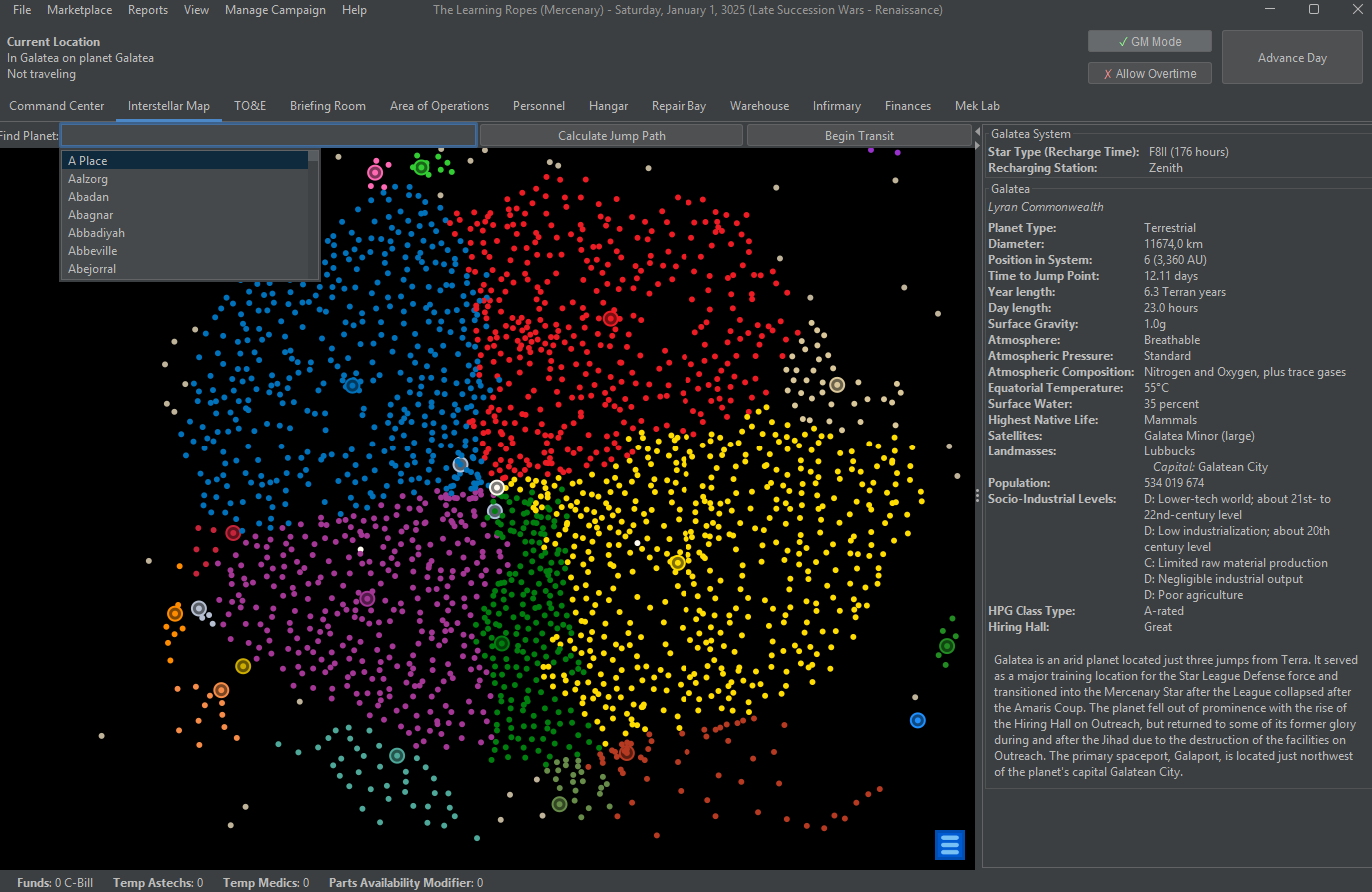
Double-click on any planet to see detailed system information, including all planets in the system, their characteristics, and historical data.
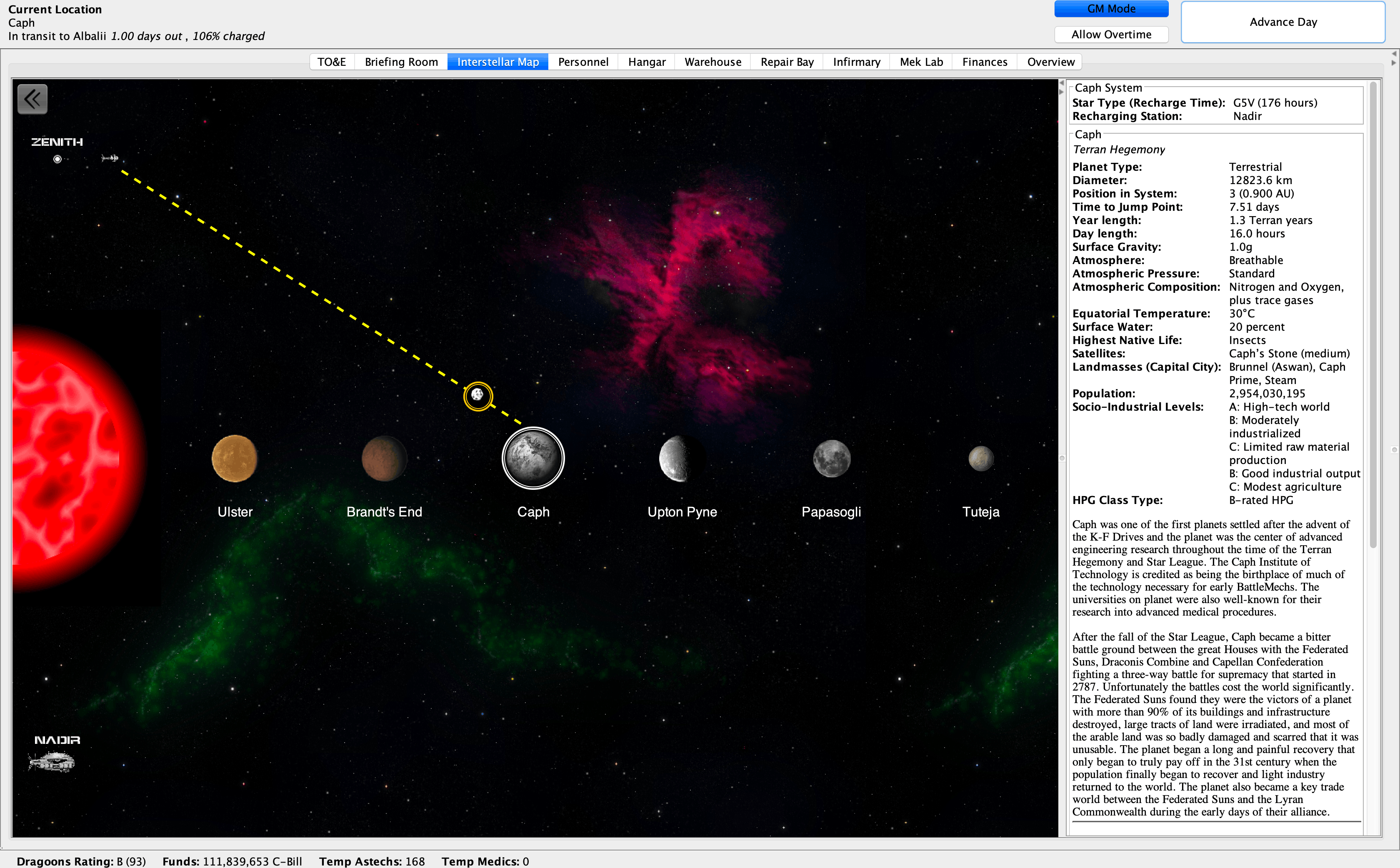
To relocate your company: Click a planet > Right-click > GM Tools > Move there.
Video Tutorial: Planetary System Editor
Since 0.51.0 you can edit planetary systems in-game. This tutorial walks through the editor.
Funds and Money
Every company starts with money. CamOps provides guidelines for starting funds.
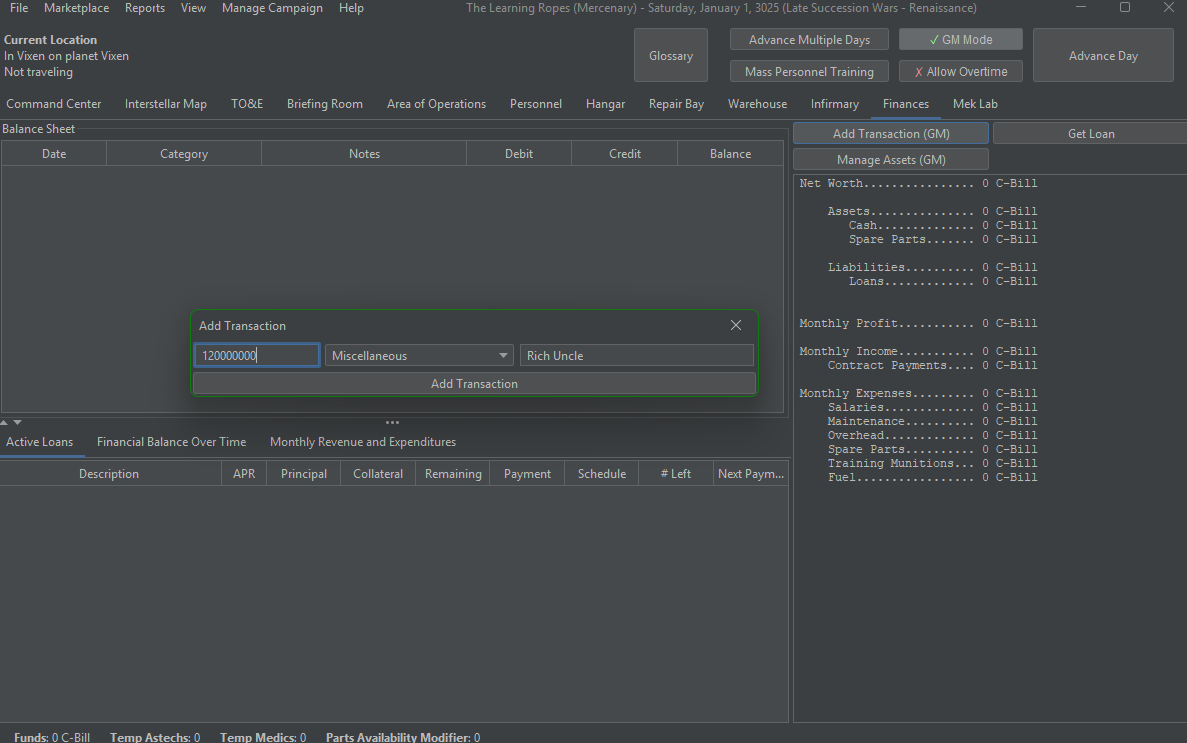
Use the Finances tab to take a bank loan.
- Go to Finances tab
- Click Add Transactions
- Add your starting capital (e.g., 120 million C-Bills)
Staff and Personnel
Hiring Methods
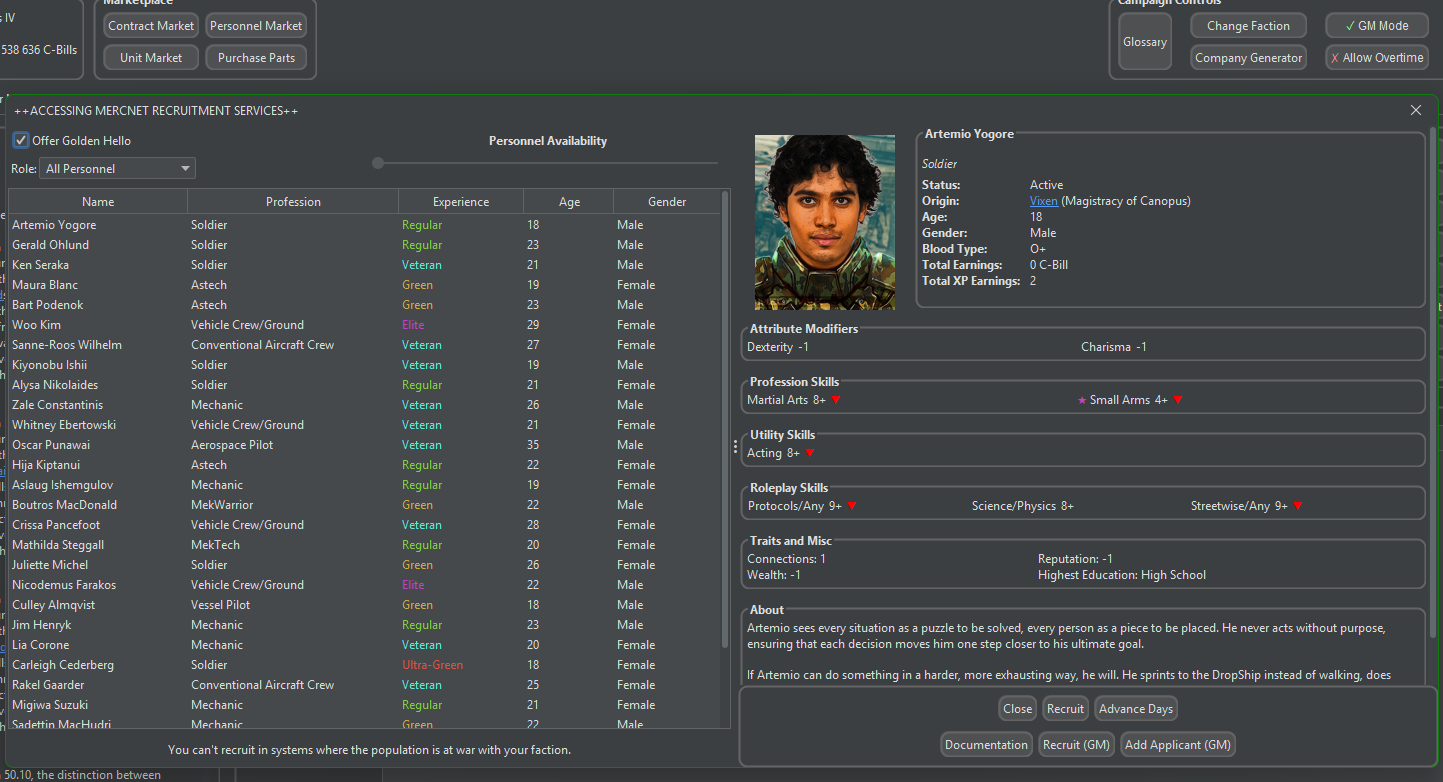
- Access via toolbar or Personnel Market button
- Shows currently available hires at your location
- Sparse in combat zones
- Marketplace > Hire for individual hires
- Marketplace > Hire Personnel in Bulk for large numbers
- More control but less realistic
Creating Custom Characters
When hiring, click Edit Statistics to customize:
- Skills (combat, support, roleplay)
- Personality and backstory
- Attributes and traits
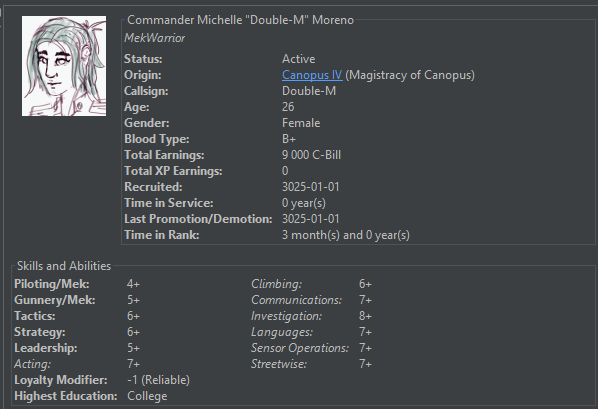
Use Change Profile (right-click menu) to add:
- Custom portrait
- Biography
- Callsign
Personnel Tab
The Personnel tab shows all your employees with sorting and filtering options.
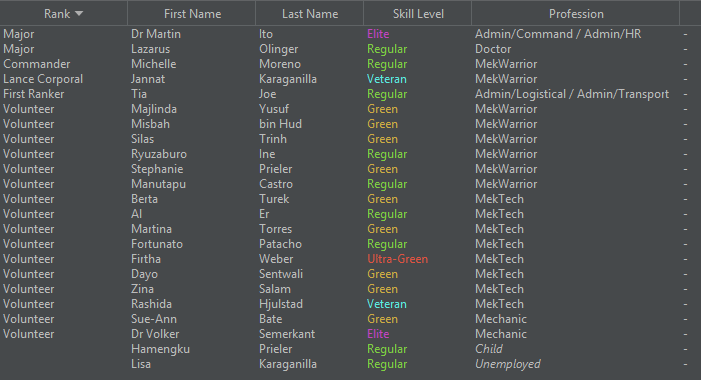
Setting Up Leadership
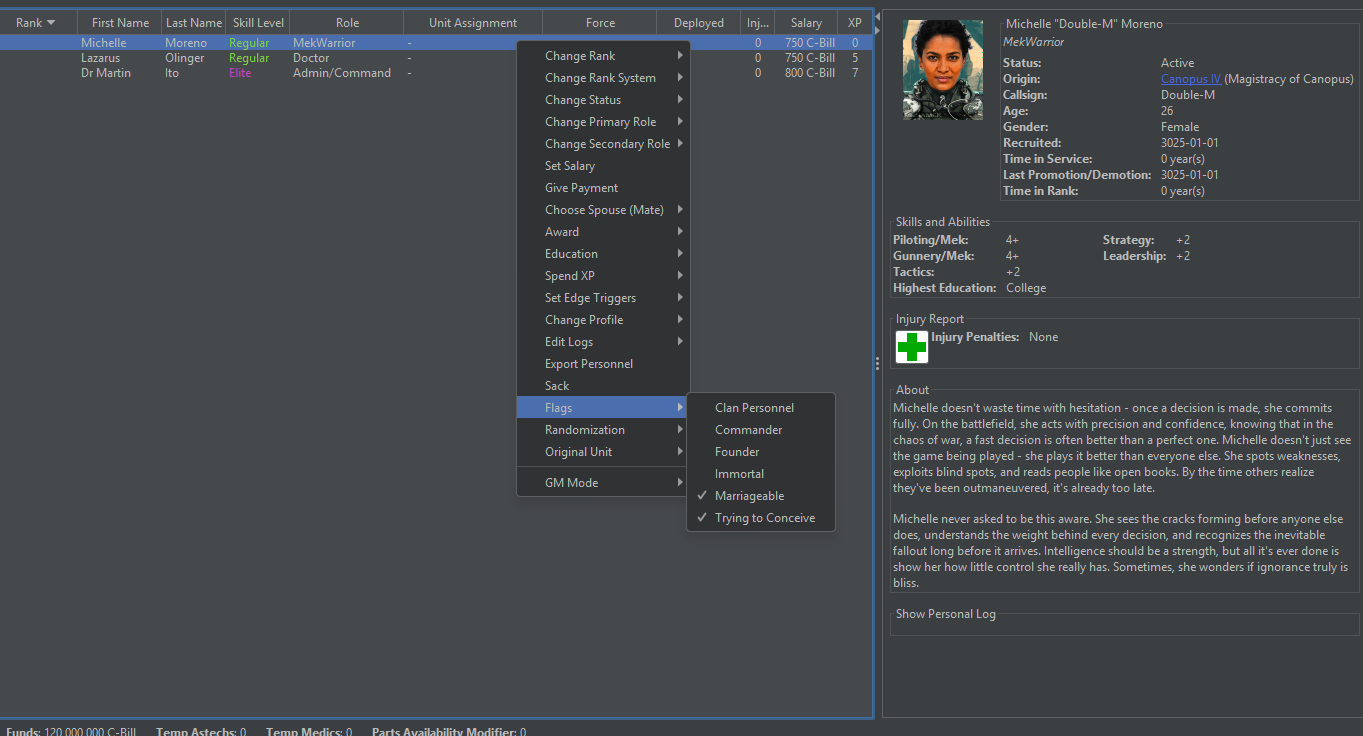
- Select your commander
- Right-click > Flags > Select Commander
- Right-click > Change Rank to set appropriate ranks
Flag founding members (Right-click > Flags > Founder). Founders have lower turnover TurnoverThe rate at which personnel leave your unit due to various factors.Click for full definition .
Video Tutorial: Custom Ranks
This video demonstrates how to create and customize rank structures for your mercenary company.
Required Staff
| Role | Purpose |
|---|---|
| Command Admin | Overall unit management, reinforcement management |
| HR Admin | Personnel happiness, admin capacity |
| Logistics Admin | Procurement and resupply |
| Transport Admin | Movement and deployment support |
| MekTechs | Maintain and repair meks |
| Mechanics | Maintain and repair vehicles |
| Doctors | Treat injuries and illnesses |
Without sufficient admin capacity, you'll experience admin strain, increasing personnel turnover TurnoverThe rate at which personnel leave your unit due to various factors.Click for full definition .
Education Module
The Education module provides immersive skill development instead of abstract XP spending.
Sending Personnel to Education
Right-click a person > Education submenu:
Internal training (creche, bootcamp)
External schools (colleges, military academies)
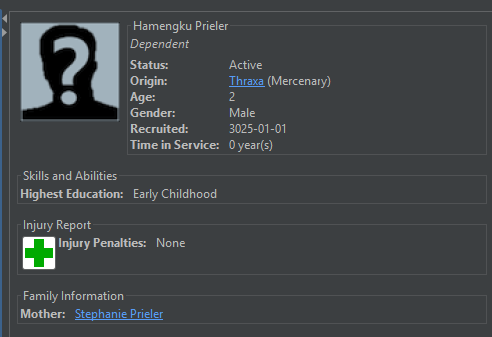
Students appear in the Personnel tab under the "Students" filter.
XP and Skills
Spending XP
Right-click a person > Spend XP:
- Improve existing skills
- Acquire new skills
- Learn Special Pilot Abilities (SPAs)
Mass Personnel Training
Click Mass Personnel Training (top right of Personnel tab)
Select profession and skill to improve
Train everyone who qualifies
Quick Train
The Quick Train button advances the lowest primary profession skills. Can be automated at end of month.
Important Leadership Skills
| Skill | Effect |
|---|---|
| Leadership | Grants 500 BV per rank for reinforcements; reduces turnover for subordinates |
| Strategy | Reduces reinforcement arrival time |
| Tactics | Deploy minefields/infantry before battle; reroll scenario conditions |
Video Tutorial: Training New Pilots
This video demonstrates how to use training forces to develop new MekWarriors for your company.
Procurements and Acquisitions
Buying Units
Command Center > Find Units
- Shows available units at your location
- Refreshes monthly
- Prices fluctuate
Marketplace > Purchase Units
- Search for any unit by type, weight, tech base
- Buy or add via GM Mode
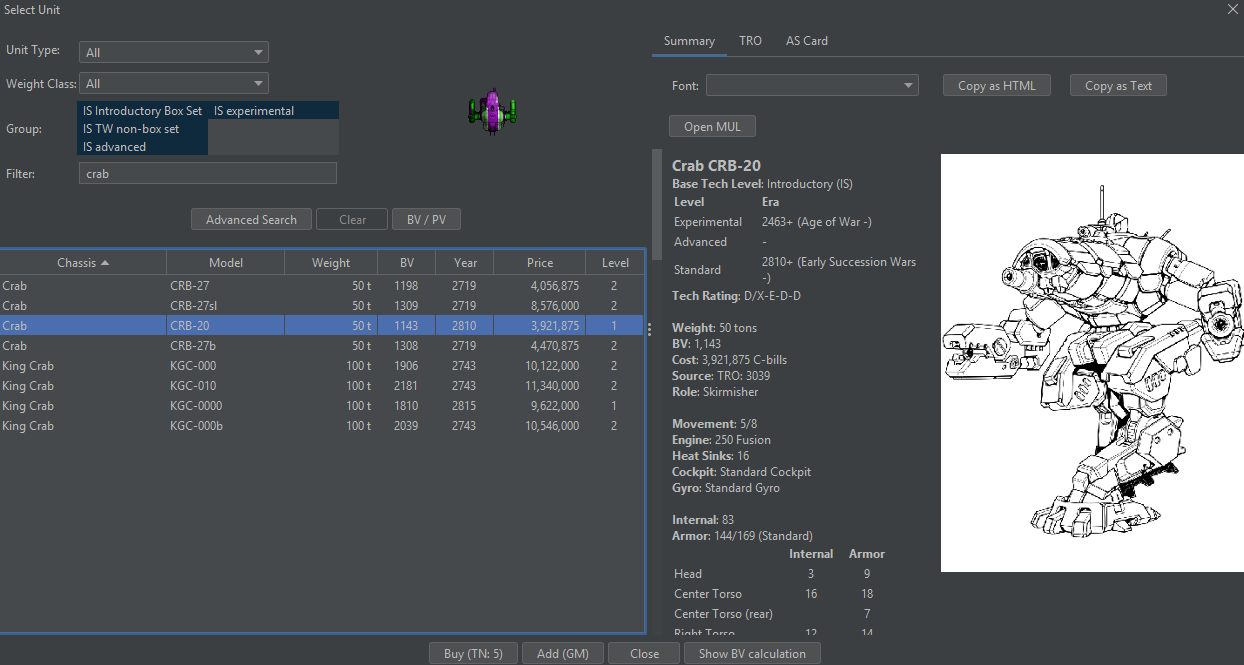
Purchased units go to the procurement queue and arrive based on your acquisition rules.
Buying Equipment
Marketplace > Purchase Parts or Command Center > Find Parts:
- Search for any part, weapon, or equipment
- Use "Buy in Bulk" for larger quantities
Maintenance MaintenanceRegular upkeep required to keep units operational, performed by assigned technicians.Click for full definition and Crew
Activating Units
If your settings have units arrive mothballed, you must activate them:
- Right-click unit > Activate
- Requires 480 minutes of tech time Technician TimeThe limited minutes each tech has available for repairs and maintenance each day (usually 480).Click for full definition
Assigning Crew
| Assignment | Method |
|---|---|
| Pilots/Crew | Right-click unit > Assign Person > Pilot/Driver Or from Personnel tab: Right-click person > Assign to Unit |
| Tech (for maintenance) | Right-click unit > Assign Person > Tech Each tech has 480 minutes of work time Technician TimeThe limited minutes each tech has available for repairs and maintenance each day (usually 480).Click for full definition per day |
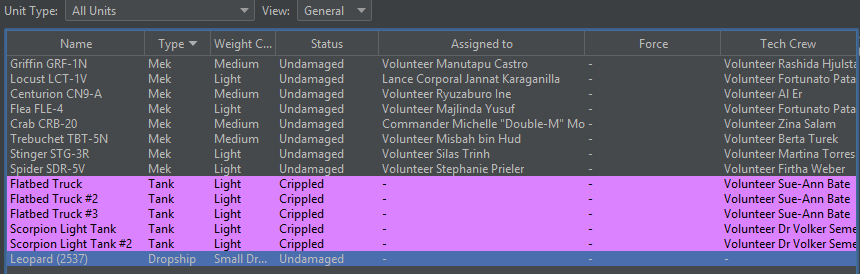
Right-click vehicle > GM Mode > Add Minimum Complement to auto-generate required crew.
Mothballing
Mothballed units don't require maintenance but occupy cargo space. Use for long-term storage or when not needed.
Parts in Use and Autologistics
Parts in Use Report
Command Center > Parts in Use Report shows:
- All parts used across your unit
- Current stock levels
- Weight of inventory
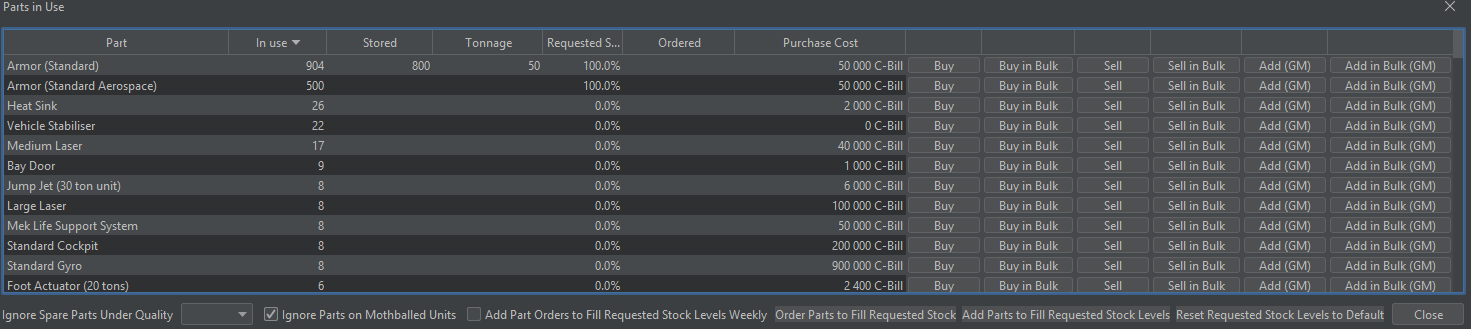
Setting Up Autologistics
Set Requested Stock Percentage for each part type
Click Order parts to fill requested stock
Enable Add Part Orders to Fill Requested Stocks Weekly
Recommended Stock Levels
| Part Type | Recommended % |
|---|---|
| Armor | 100%+ |
| Ammo | 100%+ |
| Heat sinks | 20% |
| Common weapons | 20% |
Plan 2-3 months between contracts to catch up on procurements. Delivery times Delivery TimesHow long it takes for ordered parts and units to arrive (usually months, not days).Click for full definition in BattleTech are measured in months, not days.
Repairs
Repair Bay Tab
Damaged units appear in the Repair Bay tab.
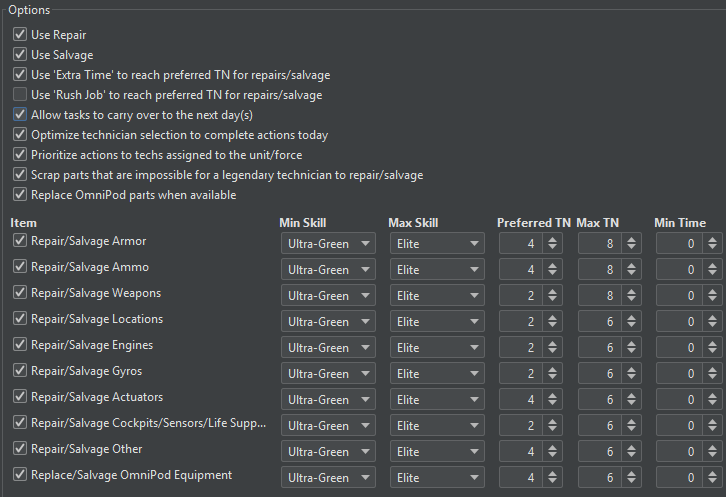
Select unit (left column)
Select damaged part (middle column)
Assign tech (right column)
Click Do Task
Right-click a task to assign more time, lowering the target number.
Salvage Mode
For badly damaged parts, switch to salvage mode:
- Right-click unit > Change repair to salvage
- Salvage components to recover what you can
- Order replacement parts
Mass Repair/Salvage
Use the Mass repair/salvage button to automate the repair process.
Medicine
Injured personnel appear in the Infirmary tab. Doctors treat patients based on:
- Number of beds (MASH theaters if used)
- Doctor skill
- Available time
Organization (TO&E)
The TO&E tab (Table of Organization and Equipment) structures your forces.
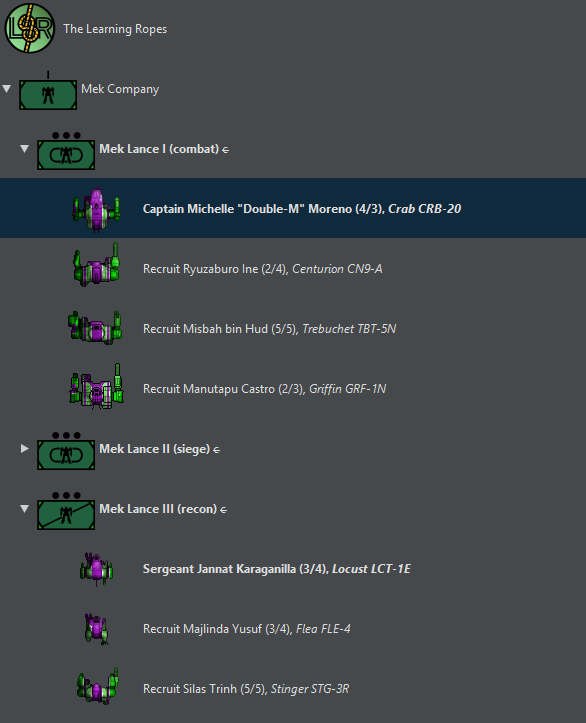
Building Your Organization
Right-click top-level force to rename
Right-click > Add New Force to create sub-units
Double-click forces to expand the tree
Right-click force > Add Unit to assign units
Force Types
| Type | Purpose |
|---|---|
| Frontline | Main combat forces |
| Auxiliary | Reinforcement pool |
| Support | Non-combat assets |
Video Tutorial: Support Forces
This video covers the different types of support forces and how to assign them within your organization.
Unit Overview
Command Center
The Command Center tab provides an overview of your company:
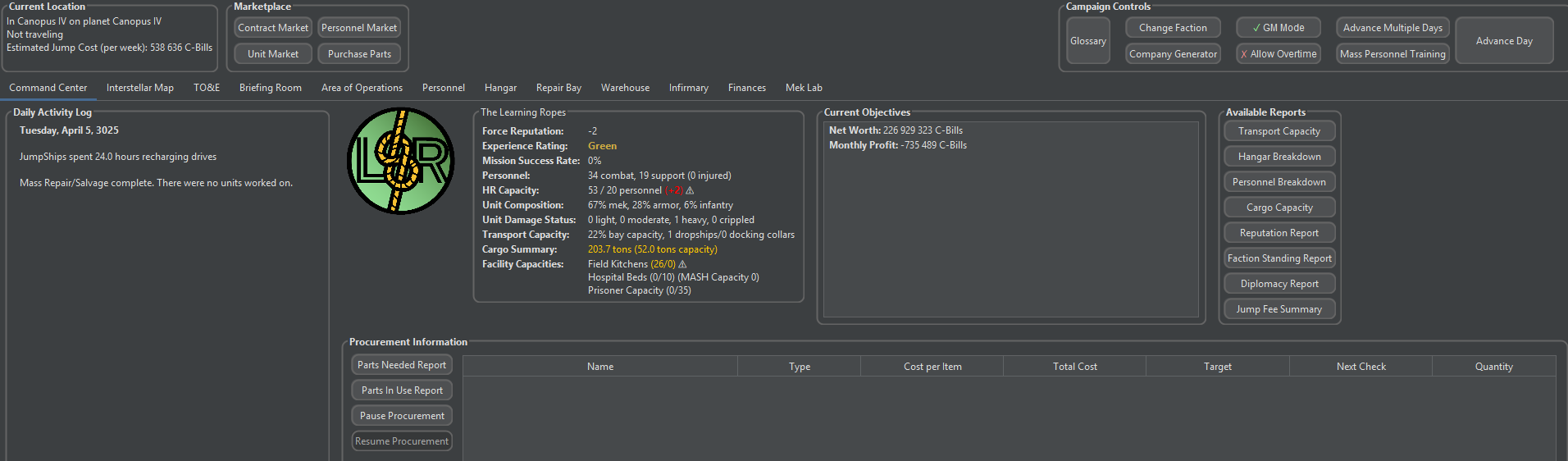
| Section | Information |
|---|---|
| Daily Log | Recent events and activities |
| Reputation | Your unit's standing |
| Cargo Summary | Capacity vs. usage |
| Reports | Various status reports |
Advancing Time
Click Advance Day to progress one day. Each day:
- Procurement rolls are made
- Maintenance and repairs progress
- Personnel go about their business
- New hires appear in the market