MegaMek Launcher
The easiest way to play. The launcher installs MegaMek, MegaMekLab and MekHQ, keeps more than one version side by side, and updates them with one button. You don't need Java if you're using the launcher. It comes built in.
Windows: the installer is not code-signed yet.
We're waiting on our code signing certificate. Until it arrives, the
.msi has no Authenticode signature, so Windows treats it as
coming from an unknown publisher.
- Microsoft Defender SmartScreen shows "Windows protected your PC". Click More info, check the file name, then click Run anyway. Your browser may also warn that the file "isn't commonly downloaded". Choose Keep.
- The User Account Control (UAC) prompt will show the publisher as Unknown publisher.
- Antivirus scanners, Microsoft Defender Antivirus included, may flag it. This is a false positive from reputation or heuristic checks on an unsigned file, not a real detection. You can report it to your antivirus vendor as a false positive.
- Smart App Control on Windows 11 may block it with no option to run it. If that happens, wait for the signed release.
- Only do this for files downloaded from megamek.org or our official GitHub releases. If you got the installer anywhere else, don't run it.
Want to be sure the file is ours? Compare its SHA-256 hash with the
.sha256 file on the
launcher release.
In PowerShell: Get-FileHash .\MegaMek-Launcher-0.14.41-windows-x64.msi.
See our code signing policy.
Checksums and older versions are on the launcher releases page.
- Download the launcher for your system from the buttons above.
- Run the installer. You don't need Java if you're using the launcher. It comes built in. On Windows, expect a SmartScreen warning until the installer is signed: here's what to do.
- Open the launcher and install the Core release.
- Start MegaMek, MegaMekLab or MekHQ from the launcher.
What the launcher does for you:
- Installs the right Java for you. No hunting for versions.
- Keeps more than one version side by side, so you can try a new release and keep the old one.
- Updates to a new release or patch with one button.
- Removes old versions when you're done with them.
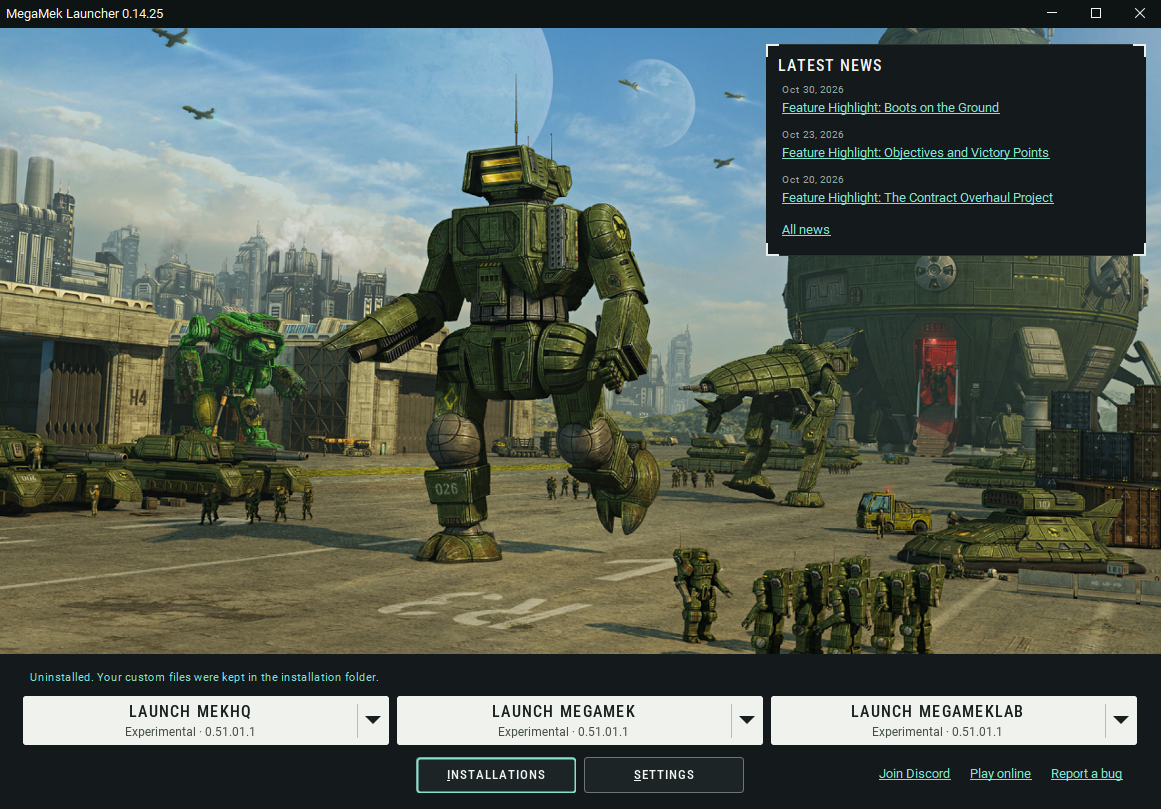
Read more in Feature Highlight: The MegaMek Launcher.
Core is the release for most players. It comes out about every four months. Fixes can now ship as patches in between, so you don't wait months for a bug fix.
Experimental builds come out weekly for our testers. They have the newest features and the newest bugs, so they aren't meant for normal play. If you run one, use the Report Bug button. Install them through the launcher, or get the archives from the GitHub releases pages for MegaMek, MegaMekLab and MekHQ.
These replace the old Nightly, Development and Milestone releases. See Release Types: Core and Experimental.
Updating Between Versions
CRITICAL: Always back up your campaigns first. Campaigns are NOT backward compatible.
Using the launcher (Recommended)
- Back up your campaign and custom files — the launcher can't roll back to an older version
- Close every MegaMek, MegaMekLab and MekHQ window, then press Update in the launcher. It updates in place and keeps your campaigns, saves, custom units and settings
- Want to keep the old version? Use Install another version instead
- Old MegaMek game saves may not load in the new version
Manual install (Not recommended, use the launcher)
Always extract each version to its own folder — never unpack a new version over an old one (e.g., don't unpack 51.01 into your 51.00 folder). Overwriting will corrupt saves and campaigns.
- Back up your campaign and custom files — critical to prevent data loss
- Extract the new version to a fresh folder — never overwrite the old installation
- COPY (don't move) your campaigns and custom data to the new folder
- Do NOT copy MegaMek saves or preference files between versions
- Re-save custom presets to update them for the new version
Manual Install (Not recommended, use the launcher)
.tar.gz archive.
You don't need Java if you're using the launcher. This step is only for a manual install. MegaMek 51.00 and later require Java 21, and we recommend Adoptium Temurin 21.
MegaMek should run on any computer that can run Java without much issue. Will NOT run on iOS/iPadOS/tvOS/Android devices. Your experience will vary based on computer specifications.
Instructions for Windows and macOS are available.
2. Download an archive
Pick one. The MekHQ archive has all three programs, so most players want that one.
MekHQ
Contains MegaMek, MegaMekLab, and MekHQ. If you're wanting to run a campaign, build units, and slaughter your friends in glorious Mek to Mek combat, this is what you want.
MegaMek
For those that just wish to do battle. Play against the AI, Princess, or against friends online via dedicated servers.
MegaMekLab
Design your own units, test whether a design works, or print a new record sheet for that last unit that blew up.
The download is a .tar.gz archive that works on Windows,
macOS and Linux. Unpack each version into its own new folder. Never
unpack a new version over an old one.
Windows: do NOT use the built-in Windows extractor. It struggles with the thousands of files in the archive and can fail or corrupt them. We recommend 7-Zip.
macOS: do NOT unpack into a
protected folder: Documents, Downloads
or Desktop. macOS will not let the programs run
there. A Games folder in your home folder works well.
Linux: do NOT ever unpack into the
root folder (/) or as root with sudo.
Unpack into a folder in your home folder, such as
~/Games.
All systems: do NOT unpack into a cloud folder (Dropbox, OneDrive, Google Drive or iCloud). The sync can move or remove files while the program runs, and strange things happen.
4. Run the programs
Double-click MekHQ.exe, MegaMek.exe or
MegaMekLab.exe in the folder you unpacked.
Open Terminal in the folder you unpacked and run the program's script, for example:
./MekHQ.shStuck? Most Mac questions are answered on the macOS issues page.
Run the program's script from the folder you unpacked, for example:
./MekHQ.sh
MegaMek.sh and MegaMekLab.sh start the
other programs.